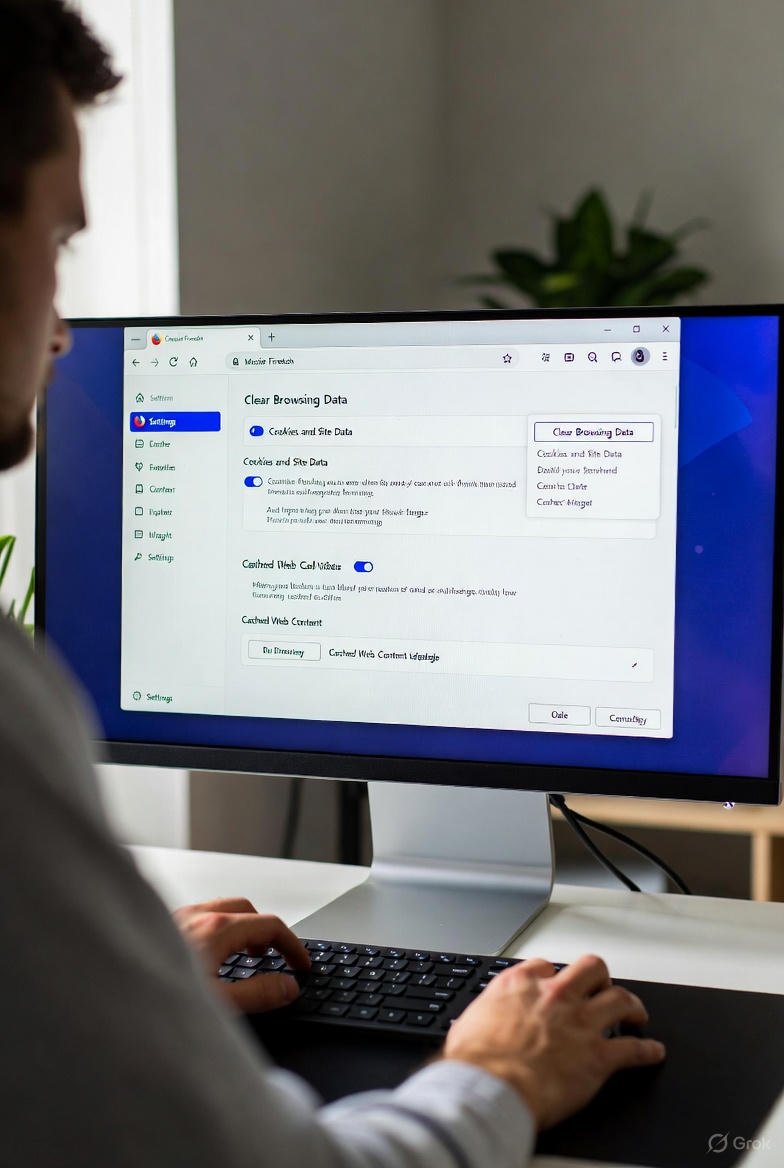

Clearing your browser cache is one of the quickest ways to fix loading problems, remove outdated website versions, protect your privacy, and make Firefox run faster again. In this complete 2025 guide, you’ll learn exactly how to clear cache in Mozilla Firefox using every possible method — from the 30-second manual trick to automatic options and mobile devices.
Whether you’re asking “how to clear browser cache Mozilla” because a website looks broken or you simply want a fresh start, this article covers everything step-by-step.
Why You Should Clear Cache in Firefox Regularly
Your browser cache stores images, scripts, CSS files, and other elements so pages load faster on repeat visits. While this is helpful, it can cause issues:
- Old website versions keep showing even after developers updated them
- Corrupted cache files make pages load slowly or not at all
- Stored data takes up gigabytes of disk space
- Privacy risk: cached files can reveal your browsing habits
Clearing the cache forces Firefox to download fresh copies of everything — usually solving 90% of “website looks weird” problems instantly.
Method 1: The Fastest Way – Keyboard Shortcut + One Click (Under 30 Seconds)
This is the method most Firefox power users rely on in 2025.
- Press Ctrl + Shift + Delete (Windows/Linux) or Cmd + Shift + Delete (Mac) → The “Clear Recent History” window opens instantly.
- In the Time range to clear dropdown, choose:
- “Last Hour” (quick fix)
- “Everything” (complete cleanup)
- Check only “Cache” (or also “Cookies” if you want) → Leave “Browsing History,” “Active Logins,” and “Site Preferences” unchecked unless you want to remove them too.
- Click “OK” or “Clear Now”
Done! You just learned how to clear cache in Mozilla Firefox in the fastest possible way.
Method 2: How to Clear Cache in Mozilla Firefox via the Menu (2025 Interface)
Firefox’s menu layout was slightly refreshed in versions 128+ (2025). Here’s the current path:
- Click the three-line hamburger menu ☰ (top-right)
- Go to Settings → Privacy & Security
- Scroll down to “Cookies and Site Data”
- Click the blue “Clear Data…” button
- Tick “Cached Web Content” (and “Cookies and Site Data” if desired)
- Click “Clear”
This is the official method Mozilla recommends when you search “how to clear browser cache Mozilla” in 2025.
Method 3: Clear Cache for a Single Website Only
Sometimes only one site is misbehaving. No need to wipe everything.
- Click the padlock or “i” icon in the address bar
- Click “Clear cache and site data” (new in Firefox 130+) OR
- Right-click anywhere on the page → View Page Info → Permissions tab → “Clear cache for this site”
Perfect when a single website is stuck on an old version.
Method 4: Clear Cache on Firefox for Android (Mobile)
On phones and tablets:
- Open Firefox app
- Tap the three-dot menu → Settings
- Go to “Delete browsing data”
- Choose time range
- Tick “Cached images and files”
- Tap “Delete browsing data”
On some 2025 Android builds, you’ll also see a quick “Clear cache” button directly under Settings → Privacy.
Method 5: Clear Cache on Firefox for iOS (iPhone/iPad)
Apple restricts full cache clearing, but Firefox gives you the best possible option:
- Open Firefox
- Tap the three-line menu (bottom-right on iPhone, top on iPad)
- Go to Settings → Data Management
- Toggle off everything except “Cache”
- Tap “Clear Private Data”
Method 6: Make Firefox Clear Cache Automatically on Exit (Set It and Forget It)
Want Firefox to clear cache every time you close the browser?
- Type about:config in the address bar → click “Accept the Risk”
- Search for: privacy.sanitize.sanitizeOnShutdown
- Set it to true
- Search for: privacy.clearOnShutdown.cache
- Set it to true
- (Optional) Also enable cookies, history, etc., if you want total privacy
From now on, every time you close Firefox, the cache disappears automatically.
Bonus: Clear Firefox Cache Using Command Line / Terminal (Advanced)
For power users who love the terminal:
Windows (Run as Administrator):
for /d %i in ("%localappdata%\Mozilla\Firefox\Profiles\*") do del /q /s /f "%i\cache2\*"macOS / Linux:
rm -rf ~/Library/Caches/Mozilla/Firefox/Profiles/*.default-release/cache2/
rm -rf ~/.cache/mozilla/firefox/*.default-release/On average in 2025:
- Light users: 100–500 MB
- Heavy users (100+ tabs, many images): 2–15 GB
After learning how to clear cache in Mozilla Firefox, many people are shocked to discover they reclaim several gigabytes.
Common Myths in 2025
| Myth | Reality |
|---|---|
| “Clearing cache logs me out everywhere” | Only happens if you also clear cookies |
| “I must clear cache every day” | Once a month is enough for most users |
| “Incognito mode never caches” | It still caches during the session; closes → everything gone |
| “Clearing cache deletes bookmarks” | Never. Bookmarks, passwords, and extensions are completely separate |
Troubleshooting: Cache Still Not Clearing?
If you followed every step and websites still show old versions:
- Go to about:config
- Search browser.cache.disk.enable → set to false (forces memory cache only)
- Or disable cache completely: browser.cache.memory.enable → false (Use only for testing — re-enable afterward)
Alternatively, refresh Firefox: Menu → Help → More Troubleshooting Information → “Refresh Firefox” button
How to Clear Cache in Mozilla Firefox – Summary Table (2025)
| Platform | Fastest Shortcut | Menu Path | Auto-Clear Possible? |
|---|---|---|---|
| Windows/Linux | Ctrl + Shift + Delete | Settings → Privacy → Clear Data | Yes |
| macOS | Cmd + Shift + Delete | Same as above | Yes |
| Android | Settings → Delete data | Settings → Delete browsing data | Yes (on exit) |
| iOS | Settings → Data Management | Settings → Data Management → Clear Private Data | Limited |
You now know every possible way how to clear cache in Mozilla Firefox in 2025 — from the 15-second keyboard trick to fully automated solutions. The next time a website looks broken, won’t update, or Firefox feels sluggish, you have the exact fix.
Bookmark this page, because even in 2025 and beyond, clearing cache remains one of the most useful troubleshooting steps any Firefox user can take.
FAQ – How to Clear Cache in Mozilla Firefox (2025 Edition)
Q: Is there a difference between “Clear Data” and “Clear Recent History”? A: Yes. “Clear Data” (in Settings) only removes cookies and cache. “Clear Recent History” (Ctrl+Shift+Delete) can also delete history, downloads, form data, etc.
Q: Will clearing cache delete my saved passwords? A: No. Passwords are stored separately and are never removed when you only clear cache.
Q: How often should I clear Firefox cache in 2025? A: Once every 1–4 weeks for normal users. Daily only if you visit hundreds of sites or work with web development.
Q: Why does Firefox still show old website versions after clearing cache? A: The site might be using aggressive service workers or Cloudflare caching. Try Ctrl + F5 (hard refresh) or clear the specific site’s cache via padlock menu.
Q: Can I clear cache without opening Firefox? A: Yes — delete the “cache2” folder inside your Firefox profile directory while Firefox is closed.
Q: Does Private Browsing mode prevent caching completely? A: It prevents saving cache to disk after the window closes, but files are still cached in memory during the session.
Q: What’s the 2025 keyboard shortcut again? A: Ctrl + Shift + Delete (Windows/Linux) or Cmd + Shift + Delete (Mac) — works in every modern Firefox version.
Now you’re a Firefox cache-clearing expert! Feel free to share this guide with anyone still searching “how to clear browser cache Mozilla” in 2025 and beyond.


