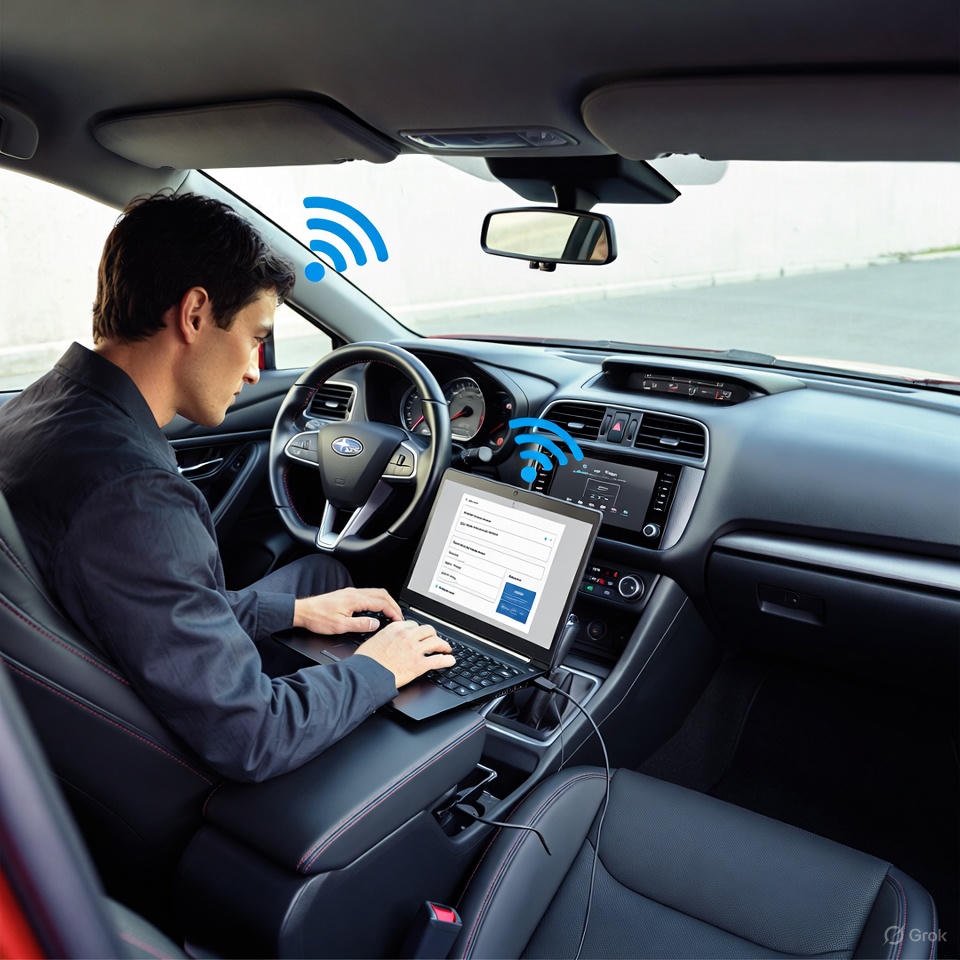

In the world of modern vehicles, keeping your car’s software up to date is essential for optimal performance, enhanced features, and improved safety. For owners of the 2020 Subaru Impreza, the process of updating the software—particularly the STARLINK infotainment system—can seem daunting at first, but it’s straightforward once you understand the steps involved. This comprehensive guide will walk you through everything you need to know about how to update software on subaru impreza 2020, ensuring you can handle it yourself without always needing a trip to the dealership. Whether you’re dealing with multimedia software updates or navigation maps, we’ll cover multiple methods, prerequisites, and troubleshooting tips to make the experience seamless.
The 2020 Subaru Impreza comes equipped with the STARLINK Multimedia system, which integrates entertainment, navigation, and connectivity features like Apple CarPlay, Android Auto, and SiriusXM. Over time, Subaru releases software updates to fix bugs, improve user interface responsiveness, add new functionalities, and enhance compatibility with smartphones and other devices. These updates are crucial as they can resolve issues like lagging screens, connectivity problems, or outdated maps that could affect your driving experience. By following this guide, you’ll learn how to perform these updates using Wi-Fi or a USB drive, methods that are officially supported by Subaru.
Before diving into the specifics, it’s worth noting that Subaru has made the update process user-friendly through over-the-air (OTA) capabilities, especially for models like the Impreza. However, not all updates are automatic; some require manual intervention. This article is based on official Subaru documentation and resources, ensuring accuracy as of late 2025. If you’re new to vehicle software management, don’t worry—we’ll explain each term and step in detail. Let’s start by understanding the STARLINK system and why keeping it updated matters.
Understanding the STARLINK System in Your 2020 Subaru Impreza
The STARLINK infotainment system is the heart of your 2020 Impreza’s dashboard technology. Available in different screen sizes—typically 6.5-inch or 8-inch displays depending on the trim level—it powers everything from radio and media playback to hands-free calling and real-time traffic updates. For models with navigation, it includes TomTom maps, which can be updated separately from the core multimedia software.
Subaru’s Gen 3.1 system, which the 2020 Impreza uses, supports OTA updates via Wi-Fi for software improvements, while map updates often require a USB drive for comprehensive coverage. The system is designed to be intuitive, with a touchscreen interface that mimics smartphone navigation. However, like any software, it can encounter glitches over time, such as slow boot-up times or intermittent Bluetooth connections. Regular updates address these by optimizing code, enhancing security against potential vulnerabilities, and integrating new features like improved voice recognition or better integration with Subaru’s connected services.
One key aspect is distinguishing between software updates and map updates. Software updates focus on the system’s firmware, improving performance and adding features. Map updates, on the other hand, refresh navigation data to include new roads, points of interest, and traffic patterns. For the 2020 Impreza, Subaru recommends checking for updates every few months, especially if you notice performance issues. This proactive approach not only enhances your daily drive but also maintains the vehicle’s resale value by keeping it modern.
Why You Should Update Your Subaru Impreza 2020 Software
Updating your vehicle’s software isn’t just about fixing problems—it’s about unlocking the full potential of your car. For the 2020 Subaru Impreza, software updates can significantly improve the infotainment system’s responsiveness, making tasks like switching between apps or loading maps quicker and smoother. Imagine dealing with a frozen screen during a long road trip; an update could prevent that frustration entirely.
Moreover, these updates often include safety enhancements. Subaru’s STARLINK system integrates with features like Eyesight driver assistance, and software patches can refine how these systems interact, potentially improving collision avoidance or lane-keeping accuracy. In an era where vehicles are increasingly connected, updates also bolster cybersecurity, protecting against unauthorized access to your car’s data.
From a practical standpoint, knowing how to update software on subaru impreza 2020 can save you money. Dealerships may charge for updates, but doing it yourself is free, provided you have the necessary tools like a Wi-Fi connection or USB drive. Updates can also extend the life of your hardware by optimizing resource usage, reducing wear on the system’s components. Users report better fuel efficiency tracking, more accurate weather integrations, and enhanced audio quality post-update. Neglecting updates might lead to compatibility issues with newer smartphones or apps, leaving you behind in technological advancements.
Subaru actively encourages these updates through emails or in-car notifications, as seen in various owner forums. By staying current, you’re ensuring compliance with any recall-related software fixes, which Subaru occasionally rolls out. Overall, the benefits far outweigh the time investment, making it a worthwhile routine for any Impreza owner.
Prerequisites for Updating Your Software
Before attempting any update, gather the essentials to avoid interruptions. For Wi-Fi-based updates, you’ll need a stable internet connection without data limits—ideally your home network or a strong mobile hotspot. Public Wi-Fi like those in cafes often require browser logins, which the car’s system can’t handle, so avoid them.
For USB methods, prepare a compatible drive: at least 16GB, USB 2.0 or 3.0, formatted in FAT32. Recommended brands include SanDisk, Kingston, or Verbatim to minimize compatibility issues. You’ll also need your vehicle’s VIN (found on the driver’s side door jamb or dashboard), an email address for account creation, and access to a PC or Mac.
Ensure your Impreza is parked in a safe, open area where you can idle the engine if needed—never in an enclosed garage due to exhaust risks. The battery should be fully charged, as updates can drain power. Set the correct time on your vehicle’s clock, as this affects update validation. Finally, unplug any other devices from the USB ports to prevent conflicts. With these in place, you’re ready to proceed.

Method 1: Updating via Wi-Fi (Over-the-Air)
For those wondering how to update software on subaru impreza 2020 without extra hardware, the Wi-Fi method is ideal for multimedia software updates. This OTA approach is quick and doesn’t require downloading large files manually. However, it won’t update navigation maps fully—only partial map updates are possible this way.
Start by connecting your Impreza to Wi-Fi. Turn on the engine and let the multimedia system fully boot up. Navigate to Settings from the home screen, then select General, followed by Wi-Fi. Toggle Wi-Fi on, then go back and select Wi-Fi Settings. Scan for available networks, choose yours, and enter the password. Ensure the signal strength icon in the top right shows at least three bars for optimal speed; weak signals can prolong the process or cause failures.
Once connected, check for updates. From the General menu, scroll down to “Check for Updates.” If an update is available, a pop-up will appear: “Software Update Ready to Download.” Select “Download Now.” The download can take up to 30 minutes, depending on your connection speed and file size (typically around 100MB or more). You can use the system during this time, but avoid turning off the vehicle.
After the download completes, select “Install Now.” The system may reboot multiple times—this is normal. Keep the engine running to maintain power. Once the installation finishes, you’ll return to the “I Agree” screen, indicating success. Turn off the vehicle for a few minutes to let the changes settle, then restart and verify the new software version under System Information.
If you encounter issues, like the system not recognizing the Wi-Fi, try disconnecting and reconnecting. Enable “Automatically Check for Updates” in settings for future convenience. This method is perfect for minor patches and keeps your Impreza’s software current without much effort.
To elaborate, let’s break it down further. The Wi-Fi connection step is crucial because the 2020 Impreza’s system uses a specific protocol that doesn’t support captive portals (those login pages). If using a phone hotspot, ensure it’s set up without restrictions and positioned close to the car for better signal. During download, monitor the progress bar in the top right— if it stalls, it might be due to network instability; pause and resume if possible.
Installation typically takes 10-20 minutes, during which the screen might go blank or show loading animations. Do not interrupt this by turning off the ignition, as it could corrupt the software, requiring a dealership visit. Post-update, test features like CarPlay or radio to ensure everything works. Owners report smoother transitions and fewer crashes after these updates. If no update appears, your system might already be current—check the version against Subaru’s latest releases online.
For partial map updates via Wi-Fi (if your Impreza has navigation), go to Settings > Navigation > Map Update. Select up to eight regions or states, then check for updates. Download and install similarly, but note that navigation for those areas will be unavailable during the process. For full USA coverage, switch to the USB method.
This Wi-Fi approach exemplifies Subaru’s push toward connected vehicles, making maintenance easier for tech-savvy owners. It’s efficient, but if you lack reliable Wi-Fi, the next method is your go-to.
Method 2: Updating via USB Drive
If Wi-Fi isn’t feasible or you need a comprehensive update including maps, learning how to update software on subaru impreza 2020 via USB is essential. This method handles both multimedia software and full navigation maps, though it requires more preparation.
First, obtain a “request code” from your vehicle. Start the engine, go to Settings > Navigation (if equipped) > Map Update Information, and note the code displayed.
On your computer, visit subaru-maps.com. Create an account if you don’t have one, using your email. Add your vehicle by entering the VIN. Navigate to the Updates tab, select your Impreza, and choose “Get Activation Code.” Input the request code to receive an activation code—save this.
Download the Map Downloader app from the site. Install and open it, log in, and check for available updates under the Updates tab. If one is ready, select “Start” to download—it could take hours for large map files, so be patient.
Insert your formatted USB drive into the computer. In the app, select “Install On USB Device” and follow prompts to copy the files. Safely eject the USB.
Now, head to your vehicle in an outdoor area. Start the engine, ensure it’s in Park (or Neutral for manual), apply the parking brake, and unplug other devices. Insert the USB into the front port. The system should detect it; follow on-screen prompts, entering the activation code when asked.
The update process can take 30-60 minutes, with the system rebooting. Do not remove the USB or turn off the vehicle. Upon completion, you’ll see the “I Agree” screen. Remove the USB, turn off the car for five minutes, then restart to confirm.

This method is robust for major updates. If the USB isn’t recognized, try a different port or drive. Common issues include incompatible USB formats—always use FAT32. Post-update, check the software version and test navigation if updated. This ensures your 2020 Impreza has the latest maps for accurate routing.
Expanding on the download phase, the files can be over 12GB for maps, so use a wired internet connection on your computer. The app verifies file integrity, reducing errors. In the vehicle, the prompts are user-friendly, with progress indicators. If interrupted, you may need to restart from the app. Owners appreciate this method for offline capabilities, especially in rural areas.
Handling Navigation Map Updates Separately
While software updates enhance the system, map updates are vital for navigation-equipped Imprezas. If Wi-Fi partial updates suffice, follow the earlier steps. For full updates, USB is mandatory.
Subaru updates maps periodically to include new infrastructure. Neglecting this can lead to incorrect directions. The process mirrors the USB software update, focusing on map files in the downloader app. After installation, verify by checking Map Update Information for the new version.
This separation allows flexibility—update software frequently via Wi-Fi and maps annually via USB.
Troubleshooting Common Issues
Updates don’t always go smoothly. If Wi-Fi connects but no update appears, ensure your clock is accurate and retry. For USB errors, reformat the drive or use a different one. Battery drain? Keep the engine idling. If the system freezes, wait 10 minutes before restarting. For persistent problems, consult Subaru support or a dealer. Always back up personal settings before updating.
Conclusion
Mastering how to update software on subaru impreza 2020 empowers you to maintain your vehicle’s tech edge. Whether via Wi-Fi or USB, these steps ensure a smoother, safer drive. Stay proactive with checks every quarter.
FAQ
Q: What if I don’t have Wi-Fi for the update? A: Use the USB method, which doesn’t require internet in the car—download files on your computer first.
Q: How often should I check for updates on my 2020 Impreza? A: Every 3-6 months, or when notified by Subaru. Knowing how to update software on subaru impreza 2020 helps you stay ahead.
Q: Will updating erase my presets? A: Typically no, but back them up via the settings menu just in case.
Q: Is there a cost for these updates? A: No, they’re free from Subaru’s site. Dealer assistance might incur fees.
Q: What if the update fails midway? A: Restart the process. If issues persist, visit a dealership.
Q: Can I update while driving? A: Absolutely not—always park safely.
Q: How do I know if my software is up to date? A: Check under Settings > General > System Information and compare with Subaru’s latest version online.
Q: Does this apply to all 2020 Impreza trims? A: Yes, but navigation features vary by trim.


